Mockups right in Figma
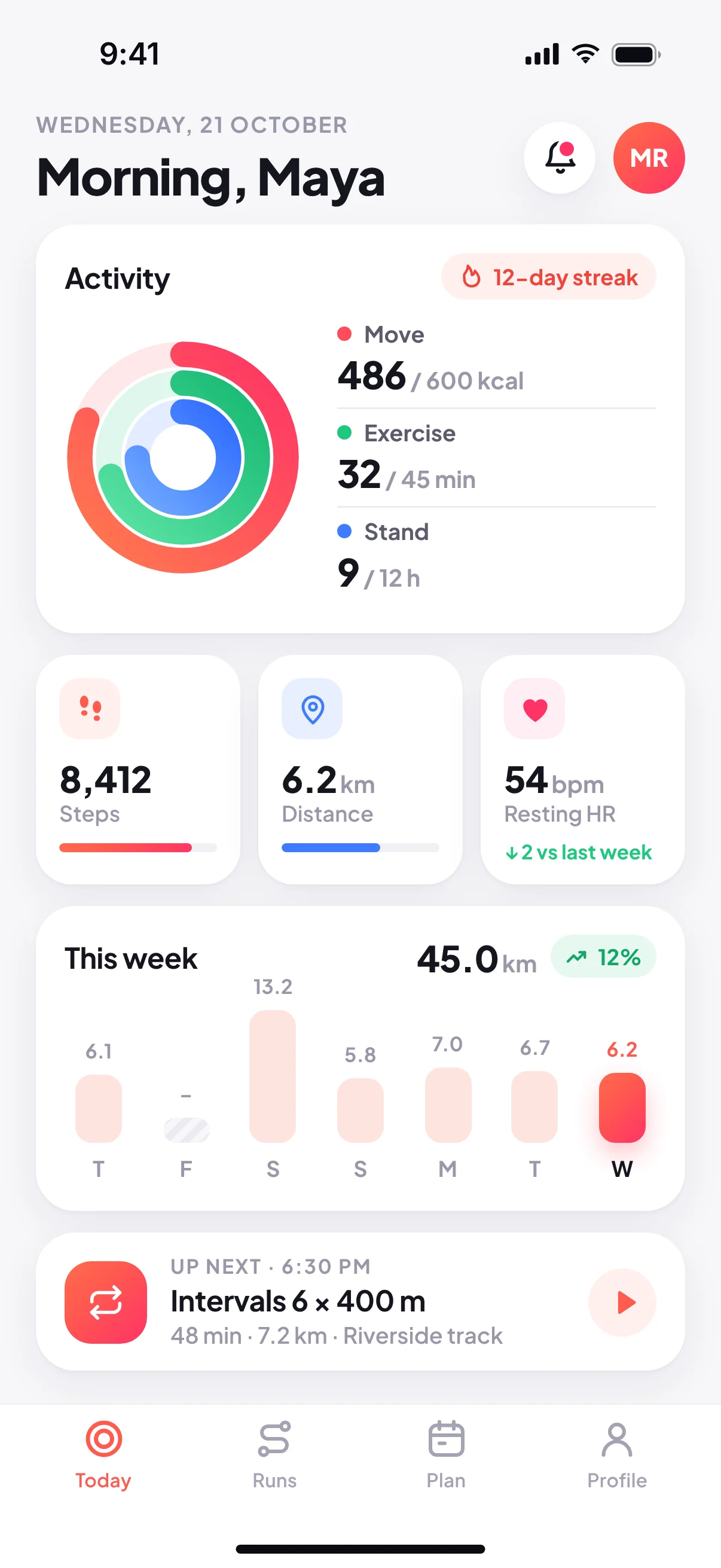
Pick Auto or one of eleven devices, from iPhone 17 Pro to a Safari window, and one of six looks. The mockups are made in the cloud and land in a section next to your frames, at 2x. Free, 30 times a day.
MockFrame for Figma
Select frames and get device mockups placed right next to them. Or open them in MockFrame as an App Store or Google Play set or a showcase, then send the finished shots straight back to your file.
Pick Auto or one of eleven devices, from iPhone 17 Pro to a Safari window, and one of six looks. The mockups are made in the cloud and land in a section next to your frames, at 2x. Free, 30 times a day.
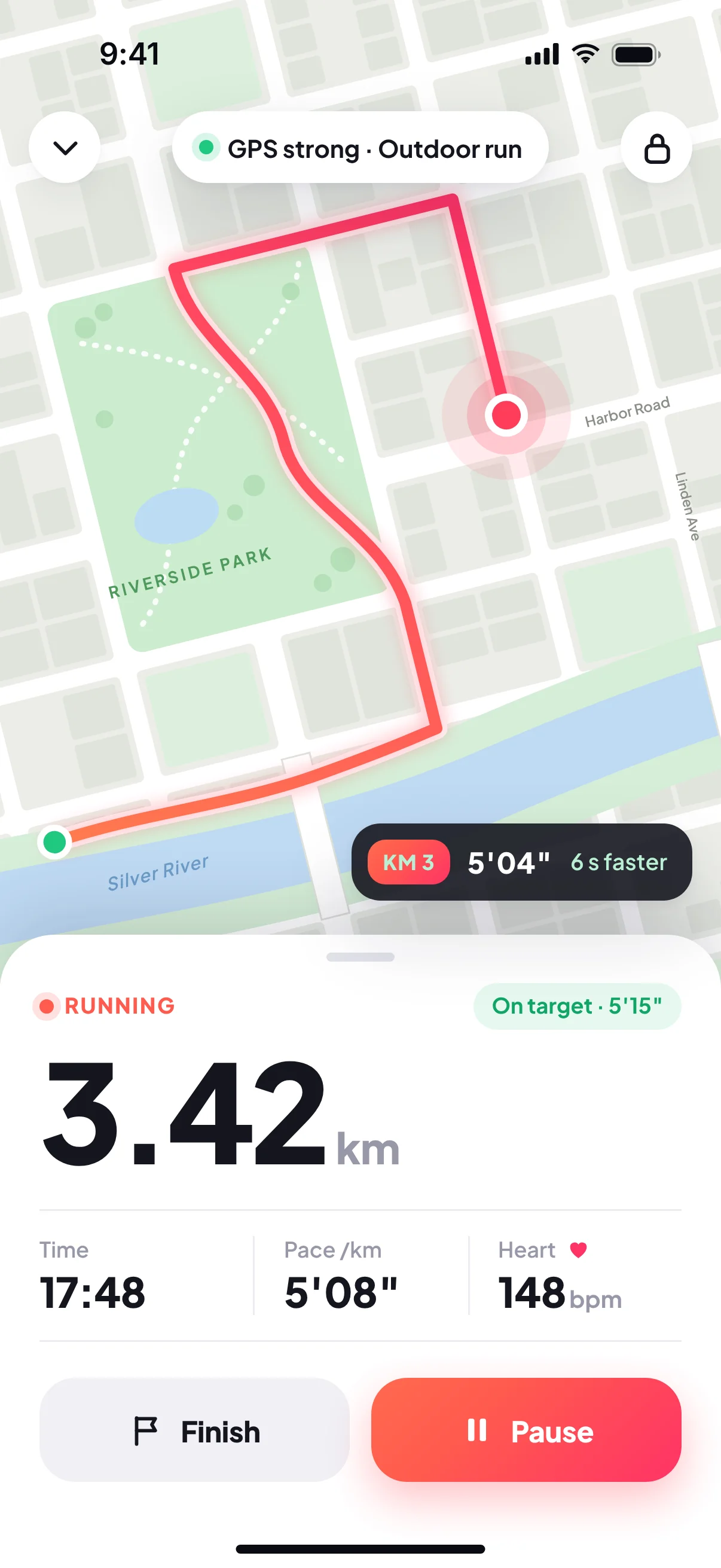
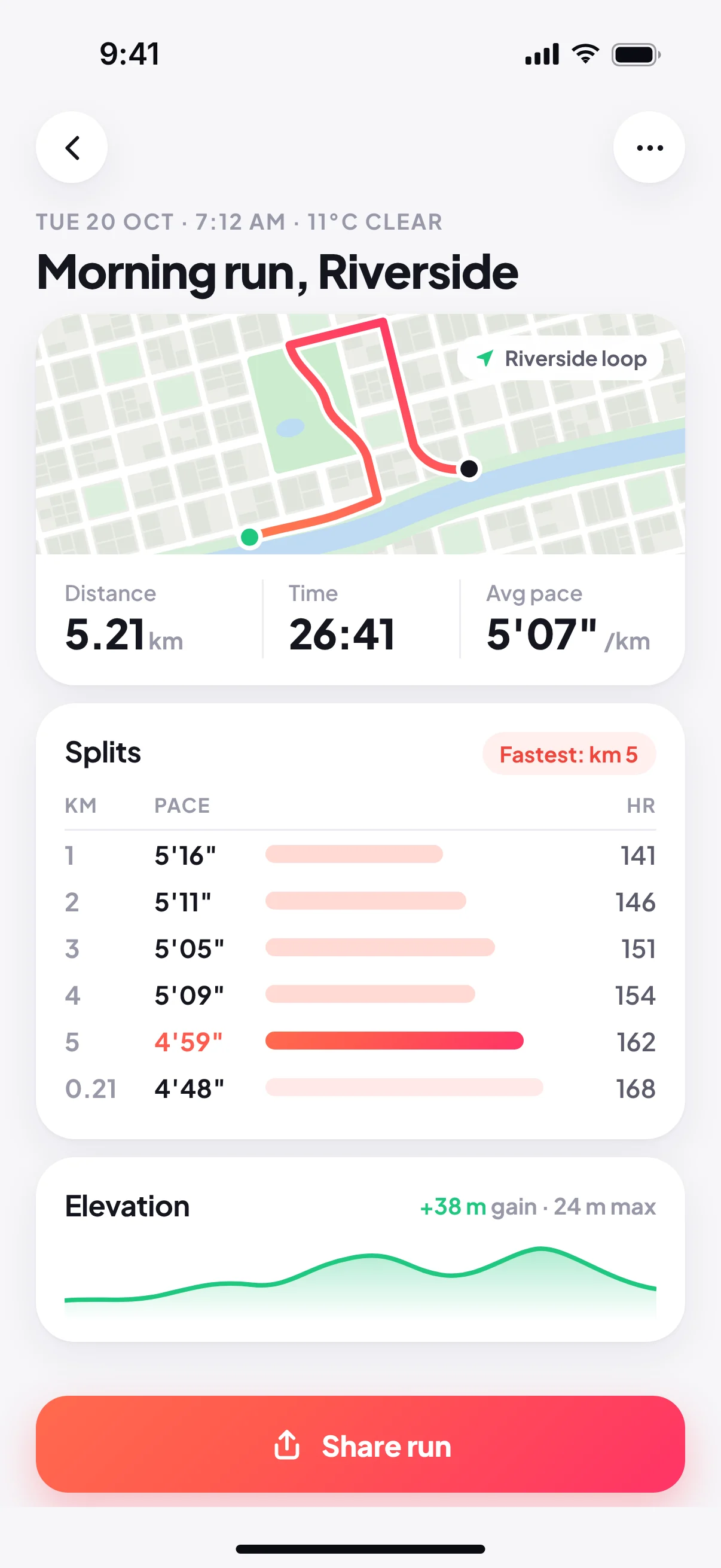
Open your frames in the editor, style every shot, then press Send to Figma. Each shot lands on your page while the plugin is open, and sending again swaps the images in place.
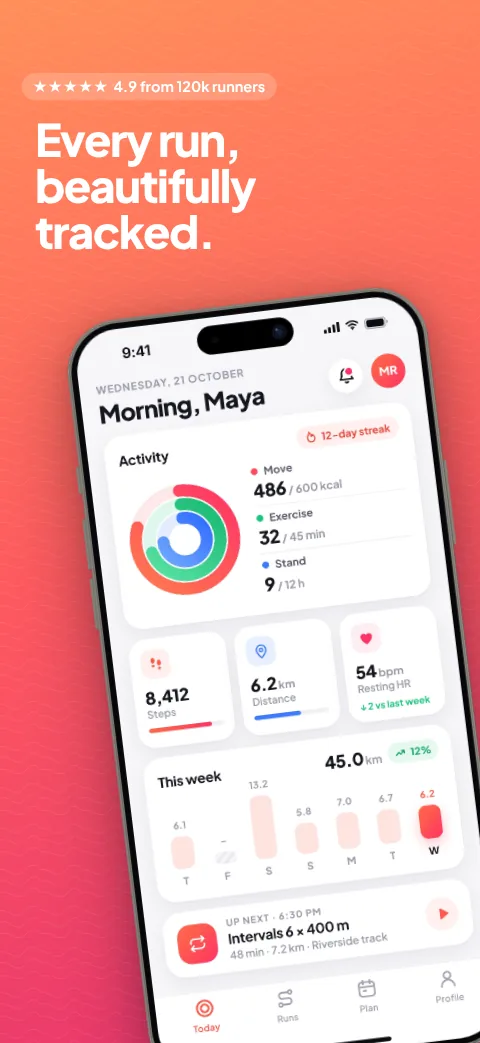
Pick one of nine styles and your phone frames fill all eight App Store or Google Play screenshots, captions and all. Change the words, then export the set or send it back to Figma. Store sets are part of Pro.
Open a frame as a showcase and it becomes a poster, a before and after, and four finished shots, ready to edit and send back.
Until the plugin is listed in Figma Community, add it from its files like this.
You get a folder called mockframe-figma-plugin with three files in it.
In the Figma desktop app, open the main menu, then Plugins, Development, Import plugin from manifest, and pick manifest.json from that folder.
Select up to 8 frames, or a section, then run Plugins, Development, Mockframe. Make mockups right there, or open them in the editor. Quick mockup of selection skips the panel.
Frames you send, and the shots that come back, expire after 24 hours. The plugin reads only the frames you select, and only opens mockframe.app.