1
Pick a set and a store
Open Templates and scroll to Store listing sets. Switch between App Store (1320 × 2868) and Google Play (1080 × 1920) to preview each set at that store's size, then choose Use this set.
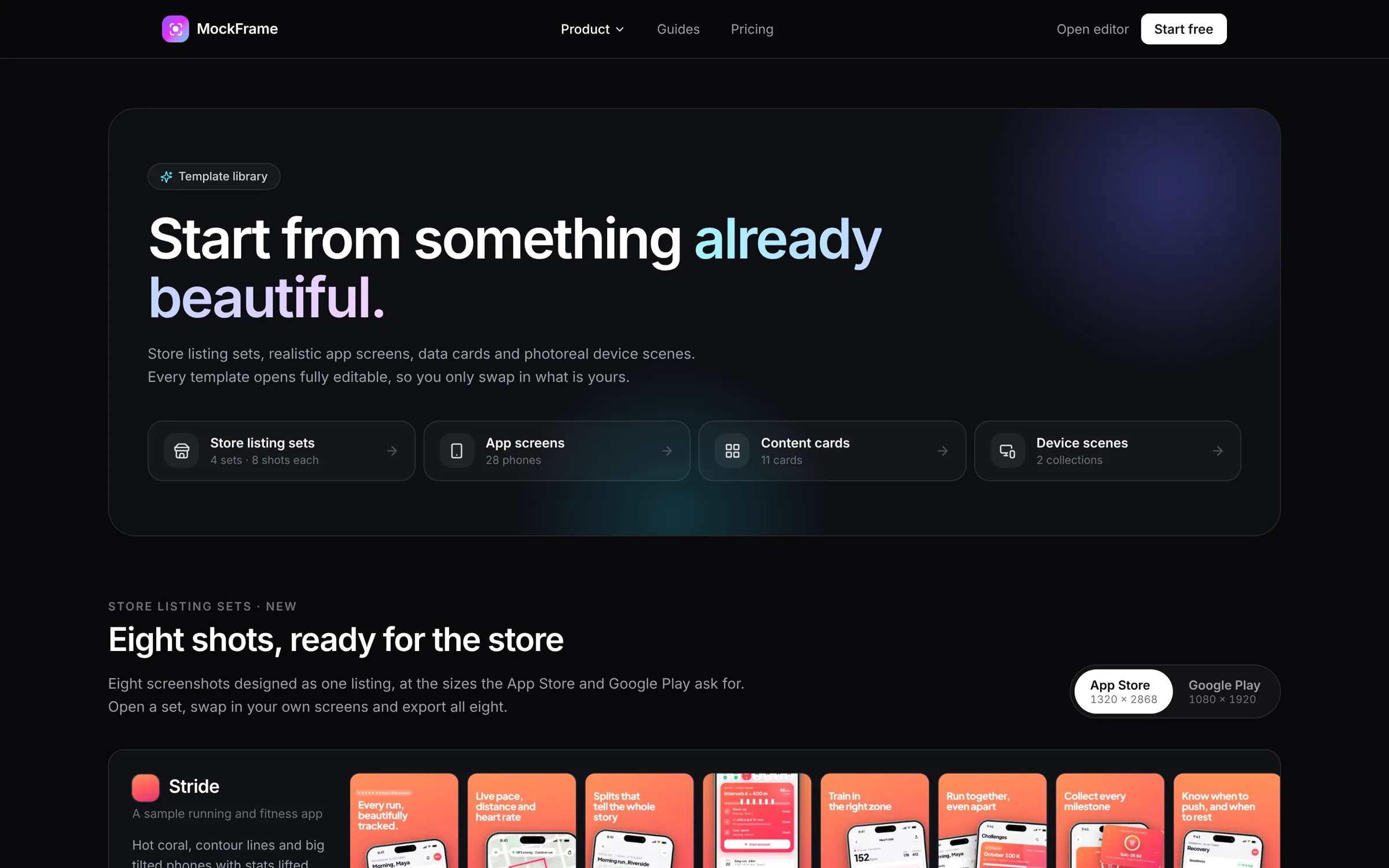
Pick one of the eight-shot store listing sets, swap in your own screens and export every shot at the size each store asks for.
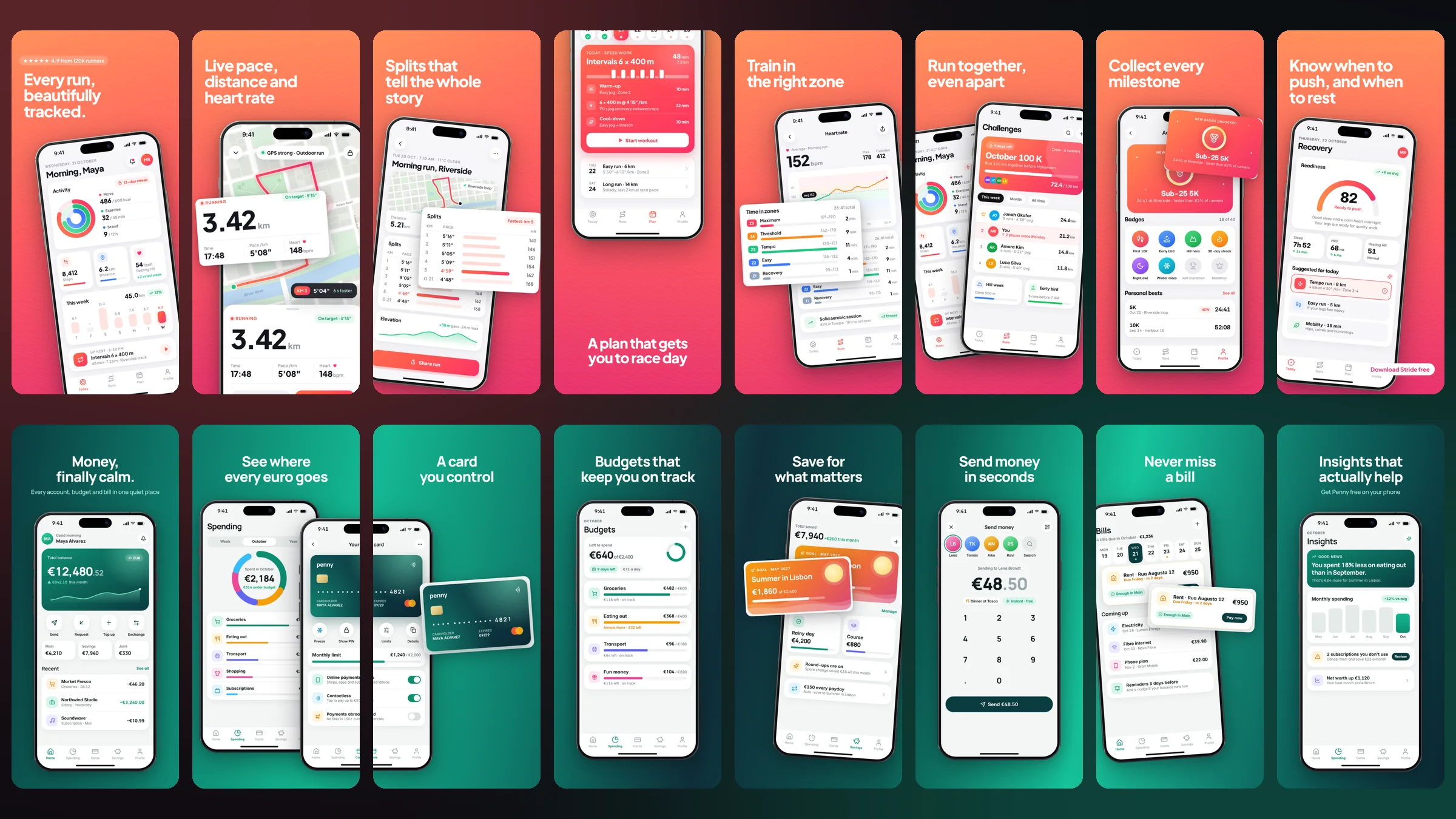
Open Templates and scroll to Store listing sets. Switch between App Store (1320 × 2868) and Google Play (1080 × 1920) to preview each set at that store's size, then choose Use this set.
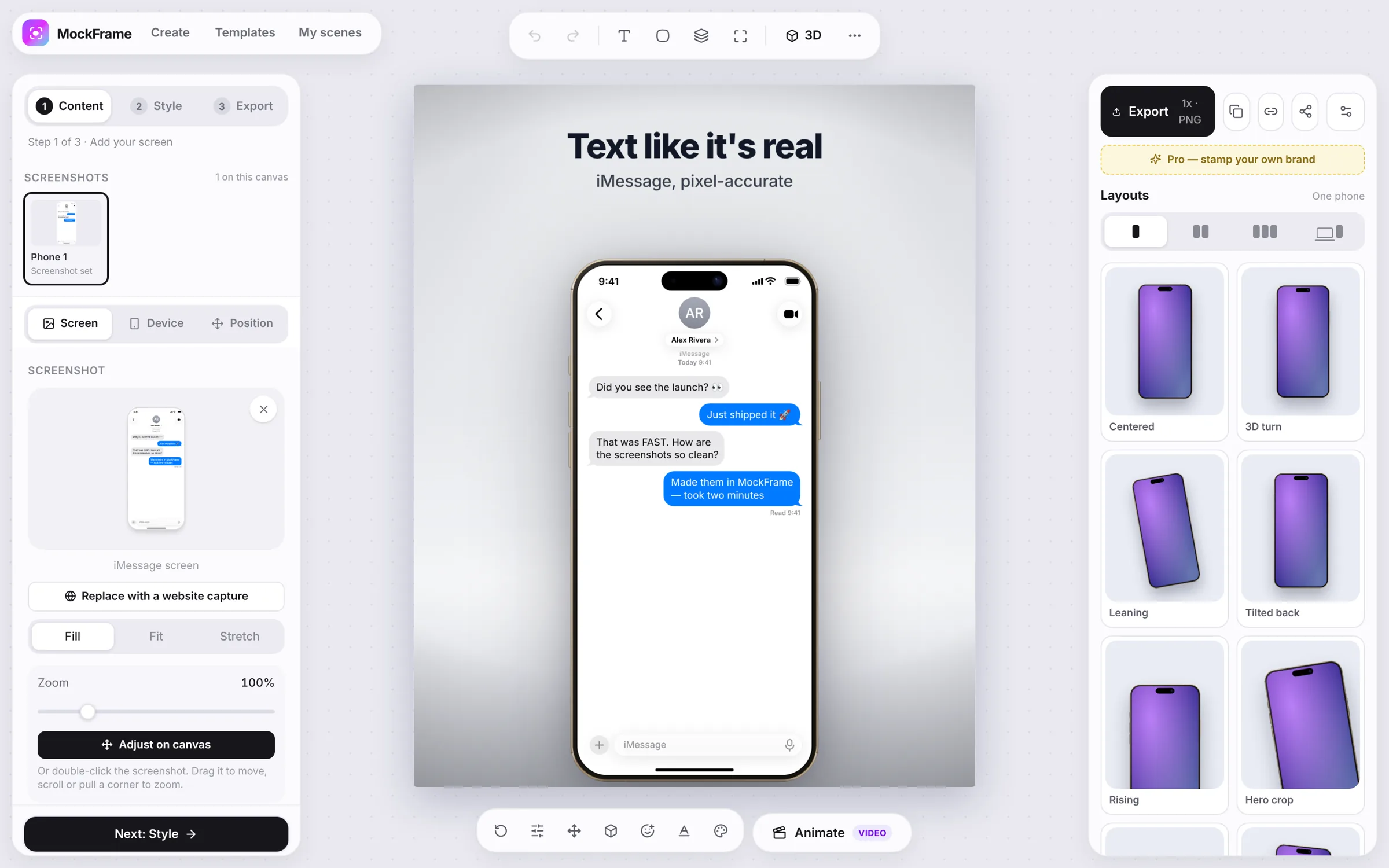
The set opens in the editor with a filmstrip under the canvas. Click any shot to edit it: headlines, colours, phones and cards are ordinary layers, so you can restyle each one.
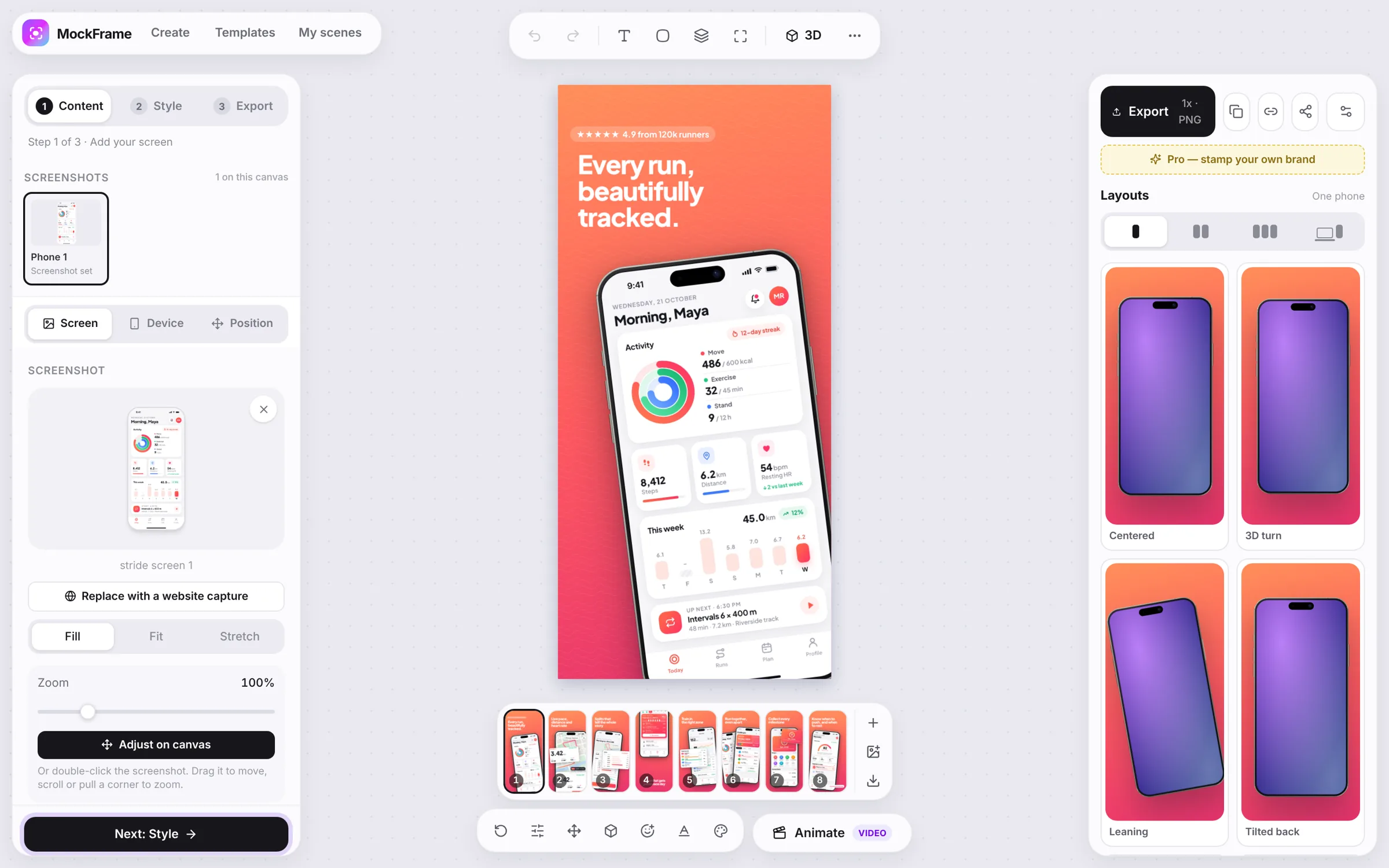
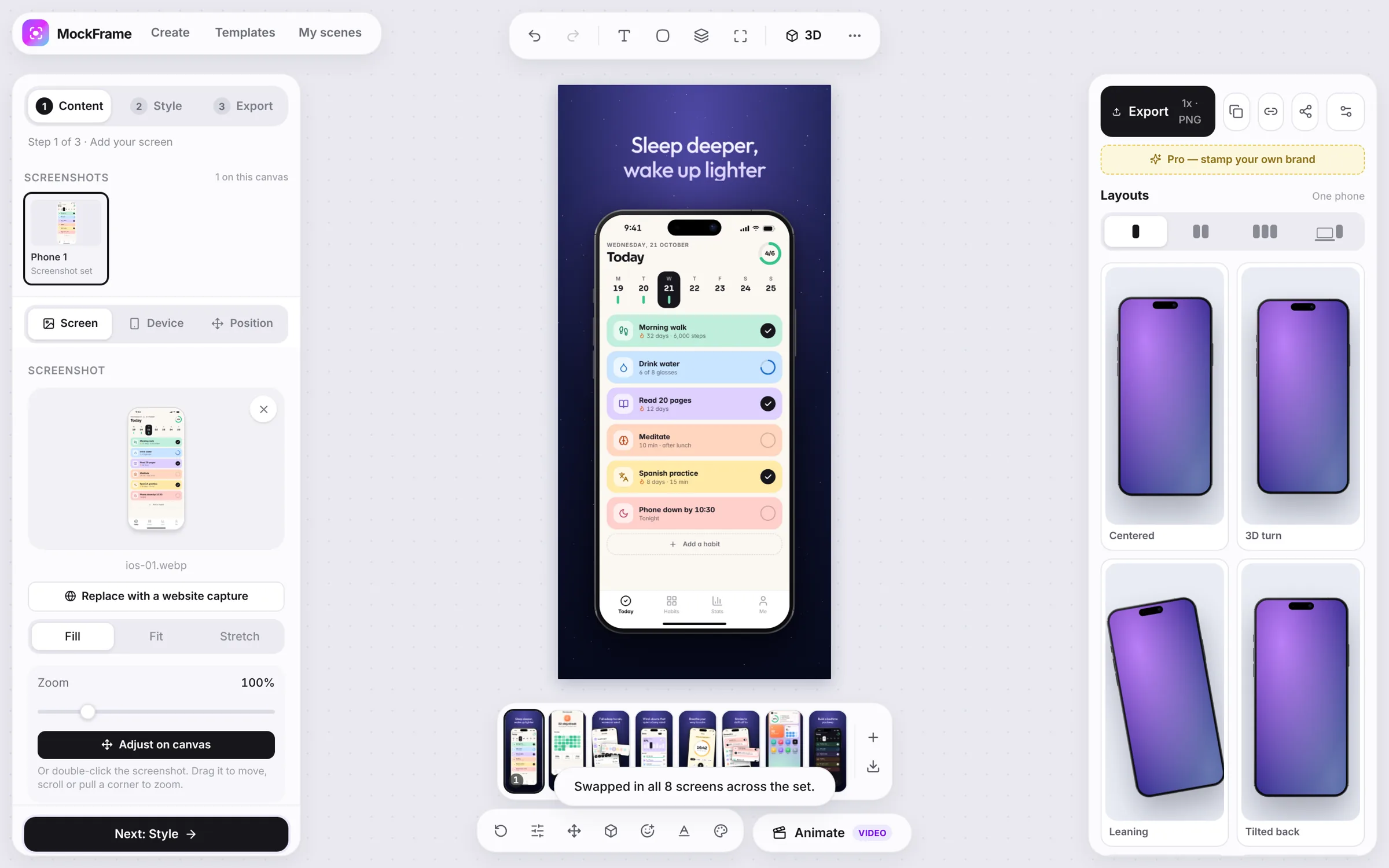
Click the image button beside the filmstrip and pick up to eight screenshots, named or ordered 1 to 8. Each one replaces its sample screen everywhere it appears, including the cards lifted out of the phone.
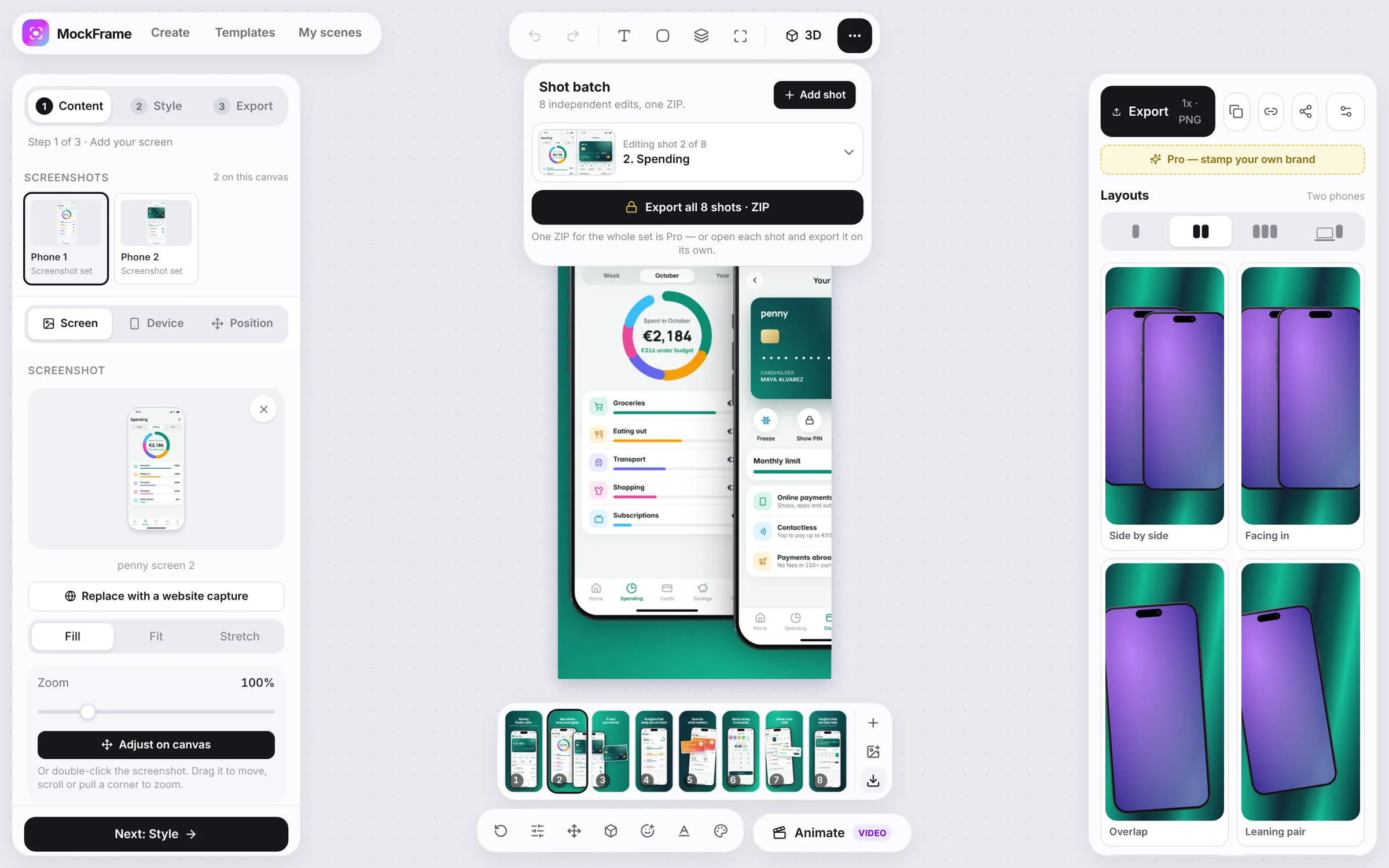
Use the download button on the filmstrip to open Shot batch, then export all eight shots as one ZIP, or open each shot and export it on its own.
Free, no sign-up, and it runs in your browser.